Power Apps + D365 F&O: The External Integration Playbook
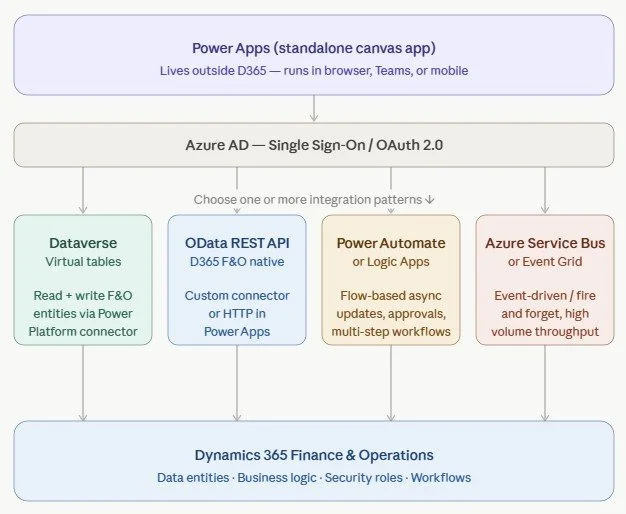
The core concept
Your Power App runs completely independently — in a browser, Teams tab, or mobile device — and talks to D365 F&O over the network. D365 exposes its data and logic through well-defined API surfaces, and your app connects to those. There are four main patterns for how that communication happens.
Pattern 1: Dataverse Tables (recommended starting point)
This is the cleanest approach for most scenarios. D365 F&O entities (vendors, customers, purchase orders, etc.) are surfaced as tables inside Dataverse. Your canvas app uses the standard Dataverse tables — no custom API work needed.
How to set it up:
In D365 F&O, go to Data management (workspace) → Dual-write
Search for and run the entities you need (e.g. VendorV2, CustomerV3, PurchaseOrderHeaderV2)
In Power Apps, The tables appear like any other Dataverse table — you can Filter(), Patch(), LookUp() against them normally
Why it's good: D365 security roles are respected automatically. You don't manage API keys or OAuth tokens manually. It's the intended Microsoft path for this integration.
Limitation: Some complex operations or custom entities may not be available as virtual tables.
Pattern 2: OData REST API (D365 native)
D365 F&O exposes a full OData v4 REST API out of the box. Every data entity you've enabled is queryable at a URL like:
https://yourenv.operations.dynamics.com/data/Vendors?$filter=VendorAccountNumber eq 'V000001'
In Power Apps, you consume this via a Custom Connector:
Setup steps:
Create an App Registration in Azure AD — this is the service identity your Power App uses to authenticate
In Power Apps → Custom Connectors → New custom connector
Set the base URL to your D365 instance, auth to OAuth 2.0 pointing at your app registration
Define the operations you need (GET vendors, PATCH sales order, POST journal, etc.)
This gives you real-time synchronous reads and writes with full query flexibility.
Pattern 3: Power Automate / Logic Apps (async flows)
When the operation doesn't need to be instantaneous — approvals, multi-step processes, scheduled syncs — use a flow as the middleman.
Your Power App triggers the flow via the Power Apps trigger, passes data as parameters, and the flow handles the D365 update using the Dynamics 365 Finance and Operations connector (which wraps the OData API for you).
Good for: approval chains that update D365 only after sign-off, overnight batch syncs, operations that need retry logic or error handling, or when you want to decouple the app from D365 response times.
Pattern 4: Azure Service Bus / Event Grid (enterprise scale)
For high-volume or event-driven scenarios, your Power App (or a backend service it calls) publishes messages to a Service Bus queue or topic. D365 listens via a business event subscription or a Logic App trigger and processes the updates asynchronously.
This is the right choice when you're processing thousands of records, need guaranteed delivery with dead-lettering, or want a fully decoupled architecture where D365 and the app have no direct dependency.
Azure AD setup — non-negotiable for all patterns
Every pattern requires a properly configured App Registration:
Azure Portal → Microsoft Entra ID → App Registrations → New registration
Set redirect URI to your Power Apps environment URL
Generate a Client Secret
In D365 F&O → System Administration → Setup → Microsoft Entra ID applications → register the same Client ID and assign it to a service account user with appropriate security roles
The service account user needs only the D365 roles required for what the app does — follow least-privilege.
Which pattern should you use?
| Your scenario | Pattern | Notes |
|---|---|---|
| Reading/writing standard D365 entities, want the simplest possible setup | Dataverse virtual tables | Recommended starting point for most projects |
| Real-time sync, complex OData queries, or custom entities not exposed as virtual tables | OData REST API + custom connector | Requires app registration in Azure AD |
| Approval workflows, multi-step async operations, or scheduled sync | Power Automate / Logic Apps | Best when D365 update follows a human step |
| High volume, fire-and-forget, or fully decoupled enterprise integration | Azure Service Bus / Event Grid | For scale and guaranteed delivery with dead-lettering |
For most mid-market implementations, Dataverse virtual tables for reads + Power Automate for writes is the sweet spot — it's maintainable, secure, and doesn't require deep API development.